
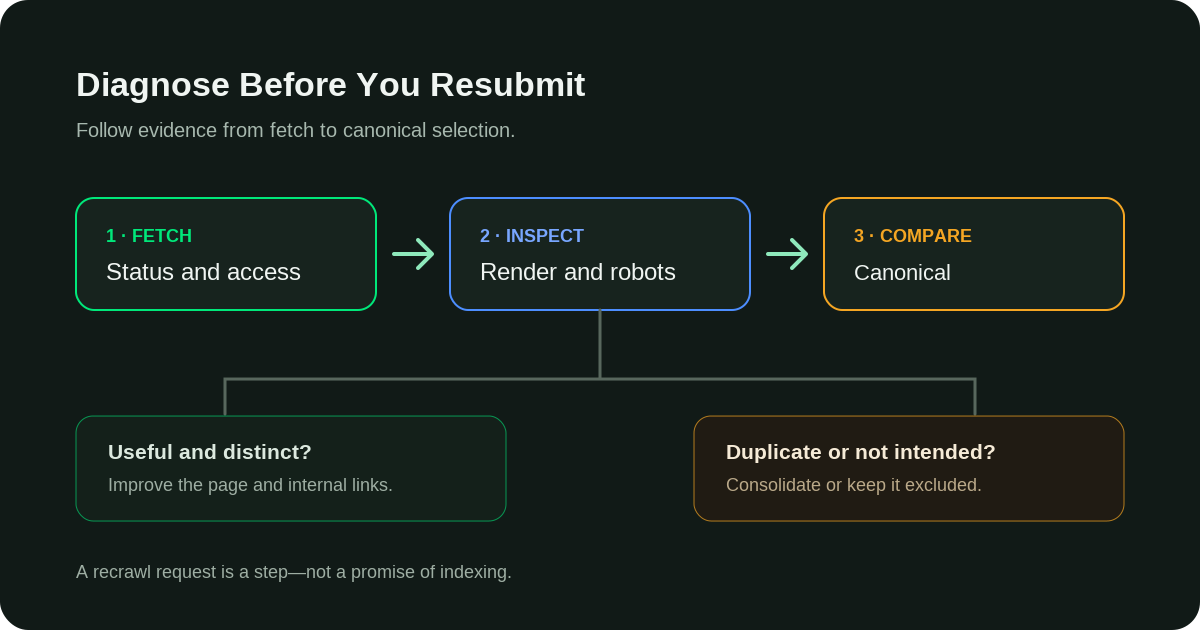
You publish a useful page, submit your sitemap, and wait. Search Console later says Google crawled the URL, but it is not indexed. Or worse, the page used to appear and now seems to have dropped out. The message is frustrating because it sounds like a single technical error. Usually, it is a status that tells you where to investigate, not a root cause.
Google does not promise to index every page it crawls. A sitemap or manual indexing request can help discovery, but neither forces inclusion. The practical task is to identify whether Google can fetch and render the intended page, which URL it considers canonical, and whether the page earns a distinct place in the index.
What does “crawled – currently not indexed” tell you?
It means Google fetched the URL but has not included it in the index at the time of the report. It does not tell you, by itself, whether the cause is content quality, duplication, rendering, canonicalization, or a temporary processing decision.
Start with the URL Inspection tool for the exact URL. Record the last crawl date, the user-declared canonical, the Google-selected canonical if available, the indexing state, and the live test result. These are different pieces of evidence. The indexed view describes Google’s stored information; a live test checks what Google can access now.
Do not assume “crawled” means the page was rendered exactly as you see it. If the initial response is an app shell, review the live rendered output and resource access. Google explains the JavaScript crawl, render, and index stages in its JavaScript SEO documentation. If your pages rely on browser-rendered content, use our initial HTML and JavaScript rendering guide.
A useful record is simple: URL, date checked, index status, declared canonical, selected canonical, HTTP status, robots directives, rendered content, and next change. It prevents repeated inspection from becoming guesswork.
How do you check if the page should be indexed?
First decide whether the URL is intentionally indexable and valuable as a standalone result. Pages created for internal search, filtered variants, duplicate product options, private account screens, and temporary campaigns may not belong in the index. A technical fix is not appropriate if the page is intentionally excluded.
Check these items before changing anything:
- Access: Does a normal request return the page without a login, challenge page, or geographic block?
- Status: Does the URL return the expected
200response rather than a redirect, error, or soft error page? - Robots: Is there a
noindexmeta tag orX-Robots-Tagheader? Is the URL or a required script blocked from crawling? - Canonical: Does the page point to itself when it is unique, or to a different URL that you genuinely consider the preferred version?
- Content: Can a reader get a distinct answer or task completed here, or is this another near-copy of an existing page?
- Discovery: Is it linked from a relevant, crawlable page, or is it known only from a sitemap?
A robots.txt disallow and a noindex directive are not interchangeable. If crawling is blocked, Google may be unable to fetch a page and see its noindex instruction. Review the robots meta and X-Robots-Tag documentation and the robots.txt guidance before changing directives.
How do you diagnose a page Google crawled but left out?
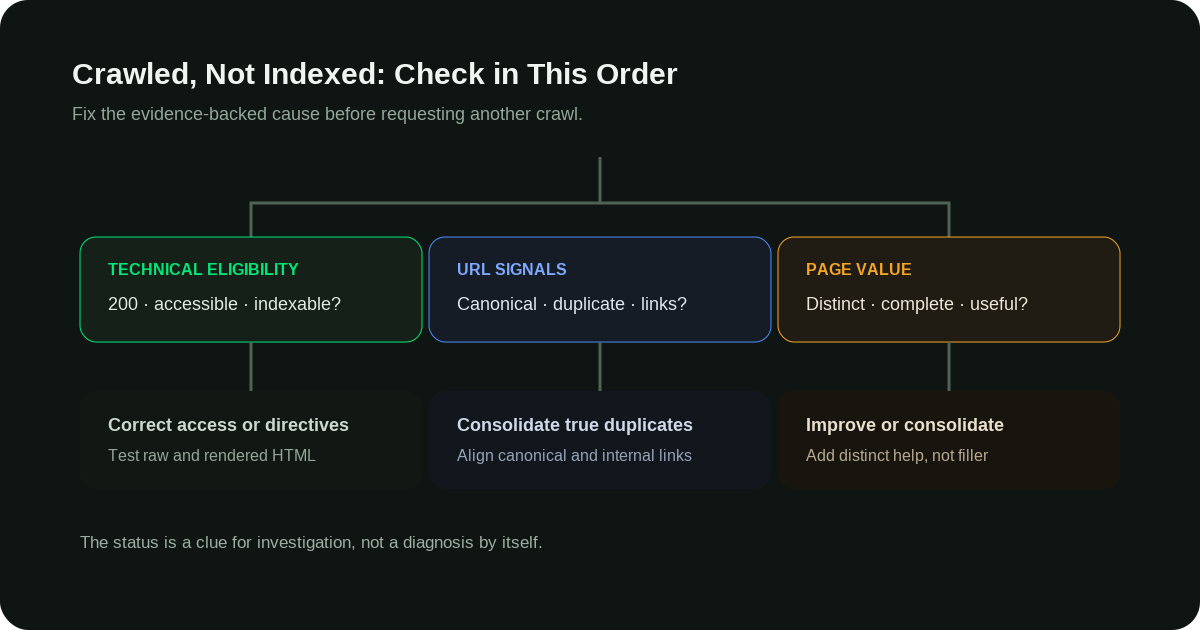
Compare the page with the competing URLs and check what Google actually received. Work through technical eligibility first, then canonical selection and page distinctiveness. Change one cause at a time so you can tell whether the fix helped.
| Check | What to inspect | A reasonable next action |
|---|---|---|
| HTTP response | Status, redirects, intermittent 5xx, challenge pages | Fix delivery and confirm the final URL returns the intended page |
| Rendered page | Main text, product details, links, blocked resources | Repair critical rendering or API failures |
| Directives | Robots meta, HTTP header, robots.txt | Align crawl access and index intent |
| Canonical | Declared and selected canonical in URL Inspection | Consolidate true duplicates or correct an accidental canonical |
| Similar URLs | Sort orders, filters, parameters, near-identical pages | Choose a canonical strategy and make variants useful or non-indexable |
| Internal links | Links from relevant hubs and related pages | Add contextual links to important URLs |
| Content usefulness | Unique information, task completion, current accuracy | Improve the actual page, not just its length |
For example, a hypothetical WooCommerce store might expose /category/shoes/?color=black&sort=price as a separate URL. If the page is nearly identical to the unfiltered category and canonicalizes to it, Google may select the base URL instead. That can be a sensible consolidation. If the filtered page serves a distinct buying need and should stand alone, make the strategy explicit and provide a useful crawlable page rather than hoping every parameter URL is indexed.
Do not create paragraphs solely to make a page longer. Add the missing evidence, comparison, instructions, or distinctions that make it more useful. If it does not have a distinct purpose, consolidate it into the stronger URL and update internal links.
What if a page was indexed and later disappeared?
Re-check the current page and its recent history; do not treat an earlier indexed state as proof that nothing changed. Pages can be affected by deployments, directives, canonical changes, access failures, content changes, migrations, and selection decisions.
- Compare the indexed URL’s previous and current canonical, status, and robots directives.
- Check deployment history, plugin updates, theme changes, CDN rules, redirects, and template output around the date visibility changed.
- Inspect the live URL and rendered HTML while logged out. Verify that key text and internal links still appear.
- Check Search Console reports for page indexing, manual actions, security issues, and performance changes.
- If the problem is site-wide, compare affected URLs with unaffected page types. A template-level issue often leaves a pattern.
- Make a focused fix, test representative URLs, and then monitor rather than repeatedly resubmitting them.
If the page returns a 404 intentionally, keep it removed or redirect it only to a genuinely equivalent replacement. Do not redirect every removed URL to the homepage; that can confuse users and search systems. For migrations, map each old URL to its closest valid destination and preserve relevant links.
Which changes are worth trying first?
Fix eligibility and canonicalization before requesting another crawl. A crawl request cannot repair a noindex, inaccessible resource, wrong canonical, broken redirect, or duplicate page.
If the response is wrong, fix the server or CDN. If the selected canonical is unexpected, correct the canonical and internal link strategy. If the rendered page lacks content, investigate rendering and data delivery. If there is no technical issue, compare the page’s purpose and usefulness with the other URLs that already serve the same need.
After the change, test the live URL and ensure the final URL has the correct response, canonical, directives, and visible content. Use URL Inspection for a small number of important pages. For many changed URLs, maintain an accurate sitemap and let Google recrawl naturally. Google says recrawling can take days to weeks and repeated requests do not make the process faster; see how to ask Google to recrawl a URL.
The goal is not to force every URL into search. It is to make the right version of each useful page accessible and understandable.
How do you stop the same indexing problem recurring?
Add checks to publishing and deployment so indexability is tested before a page becomes important. A small release checklist can catch noindex mistakes, empty client-rendered routes, broken canonical tags, and orphan pages early.
- Inspect one raw HTML response per page template.
- Verify the canonical and robots directives in production output.
- Confirm important routes return the intended status and links.
- Check that staging
noindexsettings do not leak into production. - Watch Search Console for patterns by template and directory.
- Keep a change log for migrations, URL rules, and indexing-affecting plugins.
If a page matters to the business, give it a meaningful link from a relevant category or guide. A sitemap assists discovery, but it is not a substitute for information architecture. For parameterized WooCommerce pages, our guide to canonical URLs for product filters covers the duplicate-URL decisions.
Frequently asked questions
Does “crawled – currently not indexed” mean Google penalized my page?
No. The status alone does not establish a penalty. Check manual actions separately, then inspect access, directives, canonicalization, rendering, and page usefulness.
Should I request indexing every day?
No. Google documents quotas, and repeated requests do not make a page crawl faster. Fix the cause, test the live URL, then request indexing selectively if it is a priority.
Does adding a page to a sitemap guarantee indexing?
No. A sitemap can help Google discover URLs. It does not guarantee crawling, canonical selection, or indexing.
Why does Google choose a different canonical?
Google can select a canonical different from the declared one when it sees other signals. Check duplicate content, redirects, internal links, and the consistency of canonical tags.
Should I remove pages that are not indexed?
Only if they are unnecessary or duplicative. Improve useful pages; consolidate overlapping pages; keep private or intentionally excluded pages out of the index for the right reason.
Can JavaScript cause an indexing issue?
It can contribute if important content or links fail to render. Compare the raw response with the rendered test before attributing the issue to JavaScript.