
A scheduled sale starts at midnight, but the discount is still active at breakfast. Or a weekly report arrives late because the store had little traffic overnight. These are not necessarily mysterious plugin bugs. They can be symptoms of how WordPress schedules work.
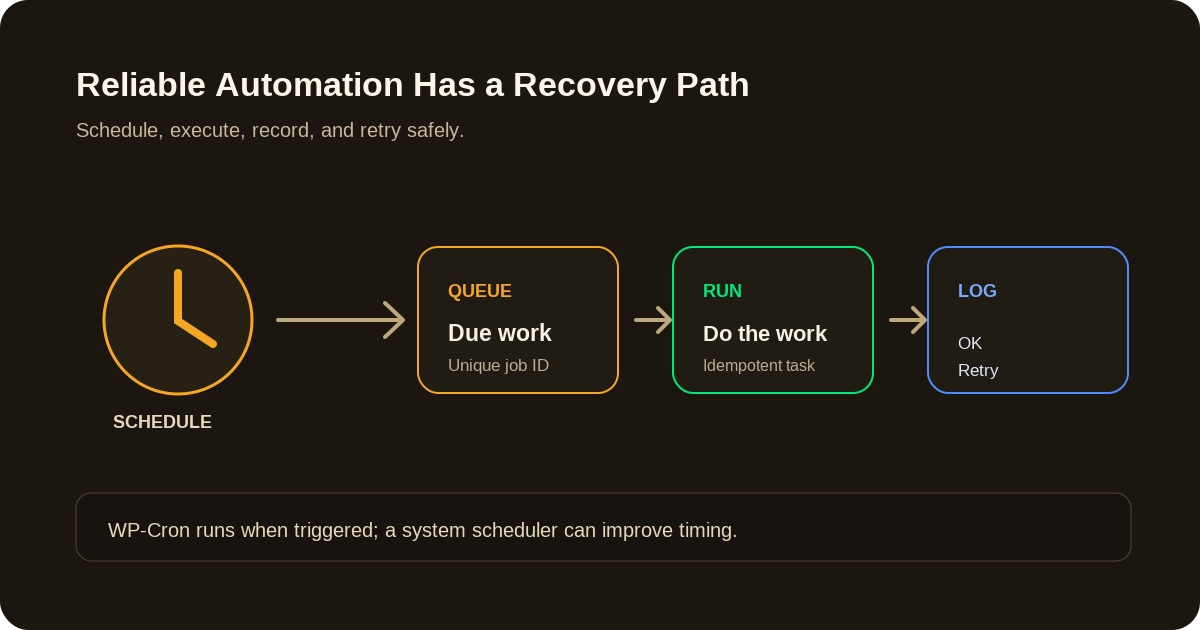
“Cron” is shorthand for time-based task scheduling. Traditional system cron runs from the operating system’s scheduler. WP-Cron is WordPress’s task system, and by default it checks due events when a page request triggers WordPress. It is convenient on shared hosting, but it is not a continuously running clock.
What is cron, and what does WP-Cron actually do?
Cron schedules a task to run at a time or interval; WP-Cron checks WordPress’s scheduled events when WordPress receives a request. If no request happens near the target time, the event can run later when traffic triggers the check.
WordPress uses scheduled tasks for work such as publishing future posts and checking for updates. A plugin can register its own event and hook. This gives developers a WordPress-aware scheduling API without requiring every host to expose a system scheduler.
The key distinction is timing. A job scheduled for 2:00 a.m. is not guaranteed to execute at precisely 2:00 a.m. under traffic-triggered WP-Cron. A visitor or another request may trigger it later. That can be acceptable for an occasional cleanup task. It may be unacceptable for a time-sensitive inventory sync, an appointment reminder, or an external service with a strict schedule.
The WordPress Cron documentation explains the traffic-triggered behavior. The schedule-events guide describes creating hooks, checking for an existing event, and unscheduling tasks.
When is WP-Cron enough, and when do you need a system scheduler?
Use WP-Cron when eventual execution is acceptable; consider a real scheduler when timing and reliability requirements are stricter. The choice depends on traffic, task duration, hosting access, and what happens if a task runs late or twice.
| Need | WP-Cron may fit | Consider an external scheduler or queue |
|---|---|---|
| Publish a scheduled blog post | Often acceptable for a low-risk site | If publishing time must be tightly controlled |
| Clear old temporary data | Usually acceptable if it runs eventually | If cleanup volume is large or must be monitored |
| Sync stock with another system | Depends on freshness expectations | If stale inventory can cause overselling |
| Send time-sensitive reminders | Risky if a delay matters | If delivery time is part of the service promise |
| Process large imports | Avoid long request-triggered work | Use a queue or worker that can resume and report |
A common setup on a low-traffic site is to disable the default page-load trigger and have the hosting provider’s scheduler call WordPress’s cron runner periodically. This depends on the host and deployment. If using WP-CLI, verify that the command is installed, the correct site path and environment are used, and overlapping runs cannot damage data. Do not paste a generic server-cron command without adapting it to the host.
The scheduler is only one layer. The task itself still needs to handle errors, duplicate execution, slow external APIs, and logging. A reliable schedule does not make unreliable task code reliable.
How do you prevent a task from being scheduled thousands of times?
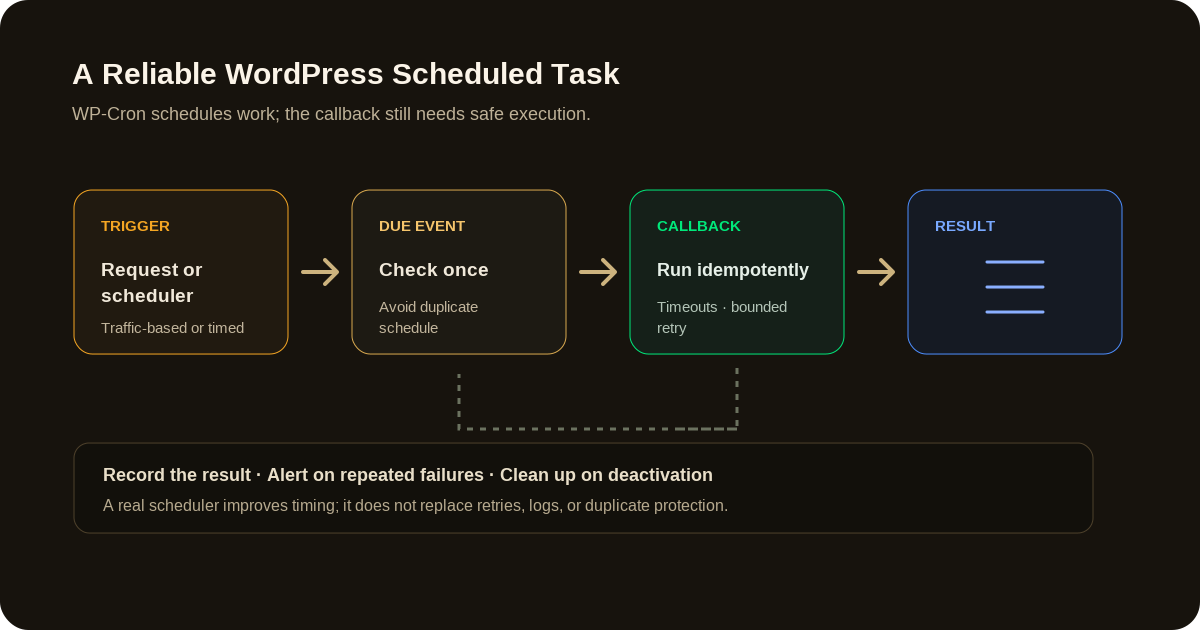
Check whether the event already exists before scheduling it, and remove it when the feature is deactivated. Scheduling logic that runs on every page load without a guard can create duplicate recurring events.
The basic WordPress pattern is:
if ( ! wp_next_scheduled( 'acme_sync_inventory' ) ) {
    wp_schedule_event( time(), 'hourly', 'acme_sync_inventory' );
}

add_action( 'acme_sync_inventory', 'acme_run_inventory_sync' );
This is an illustrative plugin pattern. Prefix hook and function names for the project, register the event at an appropriate lifecycle point, and check the return value and error behavior for the WordPress version you support. Do not place expensive work directly in the scheduling check.
When the plugin is deactivated, unschedule its event so WordPress does not keep trying to run a task that is no longer installed. If a plugin creates a single event, store or find its scheduled timestamp and clean it up intentionally.
Use a stable hook name and a clear schedule. If the task needs a custom interval, register that interval deliberately and document it. Test activation, deactivation, reactivation, and upgrades on staging. A task that works once on a developer’s local machine is not a complete lifecycle test.
How do you make an automation safe to retry?
Assume jobs can run twice, time out, or fail halfway through. Design the task so a retry does not send duplicate invoices, create duplicate records, or overwrite newer data. This property is often called idempotency: repeating the same operation should not create an unintended extra effect.
For a CRM sync, save a stable source identifier for each record and use it to update an existing record rather than creating a new one every run. For email notifications, track whether the notification was sent for the event and what happened when the provider responded. For imports, record a cursor or batch checkpoint so a retry can resume instead of restarting destructively.
A robust automation usually needs:
- Input checks: Validate that the item still exists and is eligible.
- A duplicate guard: Use a unique event ID or state transition.
- Timeouts: Set reasonable network timeouts; do not let a request hang indefinitely.
- Retries: Retry temporary failures with a limit and increasing delay.
- Logs: Record job ID, start and finish, result, and a redacted error.
- Monitoring: Alert someone when a task repeatedly fails or stops running.
- A recovery path: Make it possible to safely re-run or manually reconcile the work.
Do not log access tokens, full payment details, or unnecessary personal data. If a task sends user data to a third party, disclose that use where required and review retention and consent obligations.
How do you connect forms, chat, and external tools?
Separate the instant visitor interaction from background work. A browser request can acknowledge a form submission quickly; a queue or scheduled worker can then sync it to a CRM, send notifications, or enrich the record without holding the visitor’s page open.
A practical flow might be:
- A visitor submits a form.
- The WordPress endpoint validates the request and permission.
- WordPress saves a durable lead record or queue item.
- A background task sends the data to the CRM.
- The task stores a success or failure state and retries only safe temporary errors.
- The visitor sees a clear confirmation, not an unverified promise that every downstream service completed.
Use a REST route or the existing plugin interface for the request. Our WordPress AJAX and REST API example explains how the browser communicates with WordPress. A chatbot can use the same front-end/server split, but it also needs provider-key protection, rate limits, data minimization, and a human escalation path; see how to integrate a WordPress chatbot.
Choose an automation platform or plugin based on the number of steps, data sensitivity, recovery needs, and vendor lock-in. A no-code connector can be a good fit for a simple notification. A custom worker may be better when a store needs idempotent stock updates and detailed monitoring. Test the failure path before deciding.
Why are my scheduled events late or missing?
Check whether WordPress is being triggered, whether the event is due, and whether the callback can complete. The event list is only the starting point; inspect logs and the actual task outcome.
- Confirm the event exists and the next run time is in the expected timezone.
- Confirm site requests or the external scheduler are triggering due events.
- Check whether
DISABLE_WP_CRONor hosting configuration changed. - Review PHP and WordPress logs for fatal errors, timeouts, or permission failures.
- Check external API status, credentials, rate limits, and response codes.
- Look for duplicate hooks that may cause overlapping or repeated work.
Low traffic can explain lateness for default WP-Cron, but not every failure. A plugin callback may be throwing an error. A server firewall may block an HTTP loopback. A task might exceed PHP’s execution limits or be skipped because its conditions no longer match.
On staging, run one due event manually only after confirming the callback is safe to repeat. Inspect the resulting data, logs, and external side effects. Do not test a payment or email task against real customers or production accounts without an explicit test mode.
Frequently asked questions
Does WP-Cron run at an exact time?
Not by default. It checks scheduled events during WordPress requests, so low traffic can delay execution. A real server scheduler can trigger WordPress more predictably.
Is WP-Cron broken on a low-traffic website?
Not necessarily. It may simply run later than the nominal schedule. Decide whether that delay matters for the specific task.
Can I schedule the same hook more than once?
Technically yes, but accidental duplicates can run work repeatedly. Check wp_next_scheduled() and make task execution safe against duplicates.
Should a chatbot response run in WP-Cron?
Usually the immediate reply should return through a request-response path. Use background work for slow follow-ups such as CRM sync, analytics, or long-running processing.
How do I test a scheduled task?
Use staging, inspect the scheduled timestamp, run the task intentionally, and verify database changes, logs, external calls, and repeat behavior.
Is a plugin an adequate replacement for server cron?
It depends on the task and hosting. A plugin may improve visibility or trigger schedules, but you still need to check timing, monitoring, duplication, and recovery.