
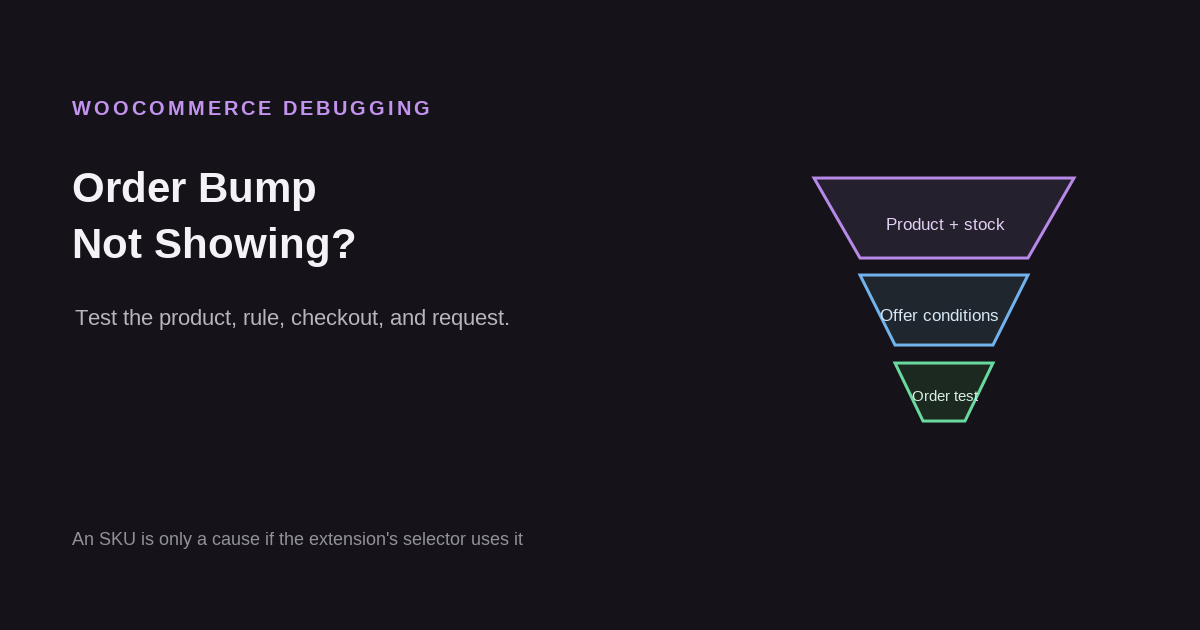
When an order bump does not appear, check the product and offer conditions first, then confirm checkout compatibility and isolate plugin or cache conflicts. A missing offer is not automatically a missing SKU problem. Some extensions search by product title or internal product ID; others use a different selector. Read the extension's own requirements before changing product records or adding code.
This workflow applies to WooCommerce sites using a third-party order-bump extension. The exact menu labels and supported product types vary by plugin version. Make changes on staging first, keep payment in test mode, and do not share customer checkout data in screenshots or logs.
Does the bump fail for everyone or only one cart?
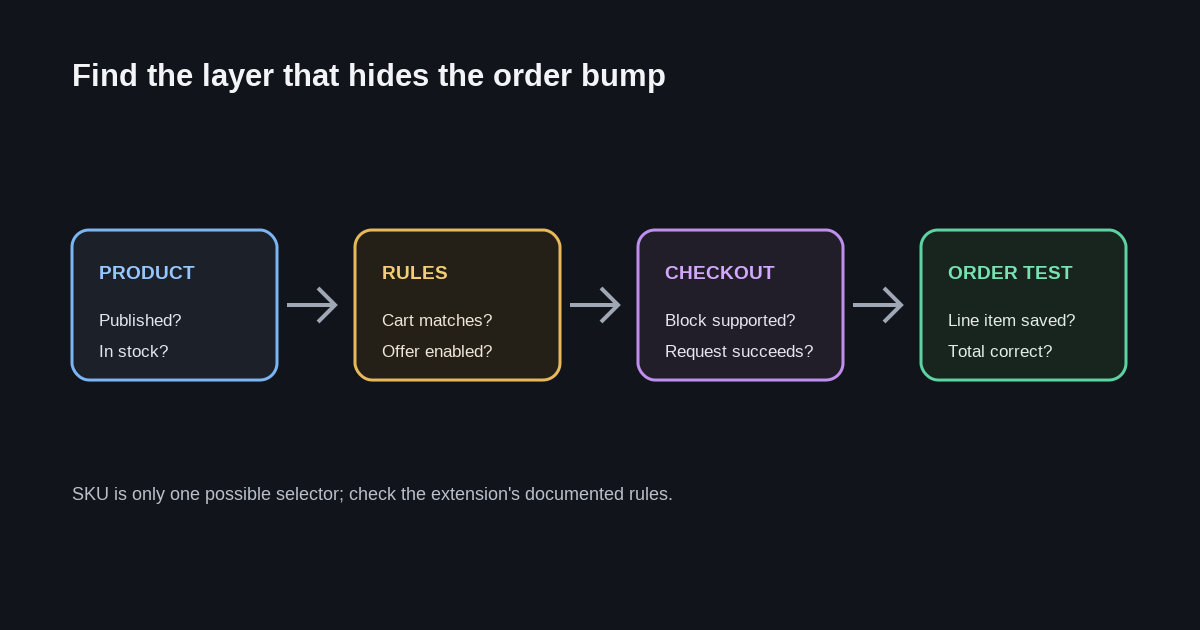
Reproduce the issue with a simple test case: a published, in-stock, simple product; one offer rule; one supported checkout page; and no coupon. Test both a guest session and a signed-in account. Note the product, variation, cart contents, selected payment method, device, checkout type, and time.
If the bump works for the simple cart but not the real cart, compare the offer conditions. The rule may require a particular product, category, minimum spend, customer type, or cart state. If it fails for every cart, look at plugin activation, checkout integration, asset loading, and PHP/JavaScript errors.
Is the product eligible and purchasable?
Open the product in WooCommerce and verify:
- The product is published and visible to the intended customers.
- Its price is set and it is purchasable in the current currency and store configuration.
- Stock management does not mark it out of stock, unless backorders are intentionally allowed.
- The offer selects the correct product or variation.
- Required attributes, downloadable settings, shipping classes, and subscription rules are configured.
- The product is not restricted by membership, catalog-visibility, role, or geolocation rules.
A product can exist in the admin but still be unavailable to the storefront. Test its direct product URL in a logged-out browser. If it is variable, select a valid purchasable variation and verify its price and stock separately.
Does the product need an SKU?
Not by definition. SKU is an inventory identifier and helps distinguish catalog items, but whether an order-bump extension requires or searches by SKU depends on that extension. Its product selector may use product title, ID, SKU, or an indexed search. Check the plugin's field instructions and documentation. If the selector finds the product by title but the storefront hides the bump, the issue is likely elsewhere.
If a product import or synchronization process recently changed IDs or SKUs, reopen the bump rule and select the product again using the extension's supported control. Do not edit the database to force an SKU match. Verify the selected product ID and variation in the extension's saved settings on staging, and confirm that the same product can be added to the cart normally.
Does the offer rule match the current cart?
Inspect the trigger and every condition. A rule targeting product ID A will not run for product B, even if the names are similar. Check category membership, cart quantity, subtotal thresholds, coupons, customer role, order history, and excluded products. Rules may use inclusive or exclusive logic; one condition can suppress an otherwise valid offer.
Temporarily create a single broad test rule on staging with a product known to be purchasable. If it appears, restore the real rules one by one. This identifies the condition causing the difference. Avoid making the production rule broad just to force visibility; an offer shown in the wrong cart can confuse customers.
Also check display settings such as checkout page, location, device, and display priority. Some plugins allow one bump per checkout or stop after another offer is accepted. Those controls can make a valid product appear to be missing.
Is your checkout integration supported?
Identify whether the store uses classic shortcode checkout, WooCommerce Checkout Block, a one-page checkout builder, or a headless/custom frontend. An extension designed for classic checkout hooks may not support a block checkout or third-party checkout builder. Verify the current compatibility matrix for the extension and your installed WooCommerce versions.
If an offer appears on classic checkout but not in a block checkout, test the supported checkout type on staging. Do not assume the problem is fixed by swapping the checkout page in production; payment methods, coupons, shipping, and checkout customizations can behave differently. Keep an export or documented record of the current configuration before testing.
Could cache or JavaScript be hiding it?
A checkout is dynamic and should not be served as a stale cached page. Check page-cache exclusions for checkout, cart, and account pages using the cache vendor's current guidance. Purge cache only after recording settings, then test in a private browser window with a fresh cart. If a CDN or optimization tool delays or combines scripts, temporarily disable only the relevant optimization on staging and compare.
Open the browser developer tools. In Console, inspect JavaScript errors; in Network, inspect failed scripts and checkout requests. A missing script or blocked endpoint may prevent the bump from rendering or updating totals. A blank screen is not enough evidence to identify which plugin caused it.
How do you isolate a plugin or theme conflict?
Create a staging copy and record the active plugin/theme versions. Update the bump extension and WooCommerce only after checking compatibility and taking a backup. Then reproduce with the default theme and only WooCommerce plus the bump extension enabled. If the offer works, restore plugins in controlled groups or use a conflict-testing tool to identify the interaction. Do not deactivate security, payment, or checkout plugins on a live store to test this.
Check WooCommerce logs and the PHP error log around the reproduction time. Look for failed AJAX or Store API calls, PHP notices that become fatal under the site's error handling, or payment integration messages. Redact customer identifiers, addresses, tokens, and order details before sharing logs. The WordPress plugin-conflict diagnosis guide provides a broader isolation checklist.
Why might the bump show but not be added?
The interface may render while the add-to-cart request fails. Check whether the customer selected a required variation, whether stock changed, whether a nonce or session expired, and whether another extension altered the cart. Inspect the checkout response and order-review totals after selecting the offer. Test accepted and declined paths, then verify that the final order contains the correct line item, quantity, price, and tax.
If the offer is added but disappears after payment failure or page refresh, investigate session persistence and gateway retry behavior. Do not patch checkout JavaScript based solely on one failed request; establish whether the response came from WooCommerce, the extension, a cache, or a custom checkout service.
What if the product selector cannot find the item?
Search by the exact product title and inspect the extension's selector instructions. If it supports a direct product ID, confirm that the ID belongs to the intended environment; IDs commonly differ between staging and production. If it supports SKU search, check that the SKU is unique and saved on the correct product or variation. If SKU is not part of the selector's documented search, adding one may help inventory operations but will not fix that particular selector.
For variable products, some extensions require selecting a parent product first and then choosing a variation; others support only simple products or fixed variations. Test one published, in-stock simple product to determine whether the selector itself works. If that item appears, compare the variable product's required attributes, variation price, stock, and purchasability. Do not convert a variable product to simple solely to work around a picker without checking the customer-facing catalog and fulfillment consequences.
If an import or product synchronization recently ran, check whether it created duplicates, changed identifiers, or left the product as a draft. Re-open the bump rule and select the intended record again; do not assume a cached search result is the canonical product. Clear the plugin's documented index/cache only after recording the current configuration, then test on staging.
How do you tell a product problem from a selector problem?
Try to add the candidate product to the ordinary cart and proceed through a test checkout. If that fails, resolve purchasability, stock, variation, tax, or access restrictions before investigating the bump. If ordinary add-to-cart works but the extension cannot find the product in its editor, inspect plugin permissions, selector search behavior, JavaScript errors in the admin, and whether the product type is supported. If the admin selector works but the frontend offer is absent, move on to rule targeting, checkout compatibility, and frontend requests.
Keep a tiny test matrix with one simple product, one variable product, and one cart condition. Change only one value at a time. This distinguishes an ineligible product from an incorrect rule and gives the extension vendor a reproducible case without exposing real customer orders.
A controlled recovery sequence
- Reproduce with a known purchasable simple product on staging.
- Verify product status, price, stock, variation, and visibility.
- Confirm the extension's product selector rules; do not assume SKU is required.
- Test a single matching offer rule and the supported checkout type.
- Inspect browser requests, plugin logs, and cache exclusions.
- Isolate conflicts on staging, changing one variable at a time.
- Verify accepted/declined flows, final totals, and stored order lines.
After finding the cause, restore the intended targeting rules, repeat the tests on desktop and mobile, and schedule a post-deployment check. If you are setting up the offer from scratch, see how WooCommerce order bumps work and what they cost. WooCommerce's guides to related products and checkout customization explain adjacent core concepts; consult the bump plugin vendor for extension-specific selectors and compatibility.