
A WordPress site can break after an update even when the update itself is healthy. A plugin may conflict with the active theme, two extensions may compete for the same behavior, or a custom snippet may depend on an older version. The quickest route to a fix is not switching everything off at once; it is making the issue reproducible, changing one variable at a time, and keeping a path back.
Start with evidence, not guesses
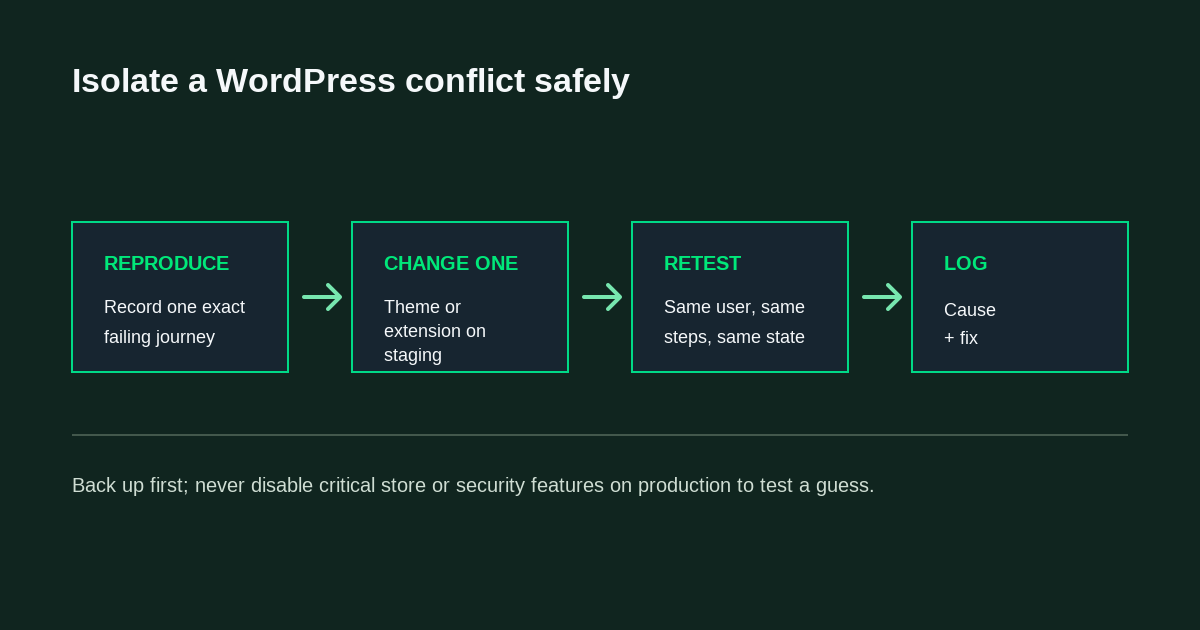
Write down what is broken, where it happens, and when it started. Does the issue affect every page or just checkout? Does it happen while logged out? Is there a visible error, a failed network request, or a message in the browser console? Note the most recent changes: plugin and theme updates, configuration edits, hosting changes, and deployments.
Check Tools → Site Health for environment information and warnings. If the site is a store, document a representative customer journey before testing: product page, cart, checkout, payment, and confirmation. A symptom that cannot be reliably reproduced is difficult to confirm as fixed.
Make a safe test environment
Before changing the live site, make a restorable backup of both the database and files, and confirm how to restore it. Prefer a staging copy that is access-restricted and does not send real customer emails or process live payments. Make sure sensitive production data is handled appropriately when copied.
If staging is not available, choose a low-traffic maintenance window and have a tested recovery plan. Do not deactivate checkout, security, backup, or other critical extensions on a live store simply to see what happens.
Keep the staging copy representative. A conflict can depend on a particular PHP version, cache layer, payment gateway setting, or user role. Record those conditions before you start. If the issue appears only for logged-in customers, verify that your test account has the same capabilities and account state; an administrator account may see a different page or bypass a customer-facing error.
Isolate one change at a time
On staging, switch temporarily to a current default WordPress theme and retest the same steps. If the issue disappears, the active theme or its customizations are involved. If it remains, reactivate the normal theme and test plugins methodically, enabling only the required set and adding the others one by one until the symptom returns.
- Record the starting versions and reproduce the issue.
- Change one theme or plugin variable.
- Repeat the identical test steps and capture the result.
- Restore the previous state before testing the next variable.
For a large plugin set, a troubleshooting mode that changes settings only for your administrator session can reduce risk; still verify the specific tool’s behavior and test on staging first.
When there are many extensions, avoid toggling them without a record. Group them by the feature under investigation, then test the smallest useful set first. For example, if only product filtering fails, keep the catalog, product data, and filtering dependency intact while narrowing unrelated components. A binary-search approach can reduce the number of tests when a large group is suspected, but only if each half can be disabled without removing a dependency required by the other half. If disabling a group changes the environment substantially, return to one-at-a-time testing.
Check the browser console and network panel for script errors or failed requests, then compare those clues with PHP and hosting logs. A blank screen can result from a JavaScript error even when PHP completed normally; a server-side fatal error may never appear in the browser console. Record the timestamp and timezone of the reproduction so the relevant log entries can be found. Redact authorization headers, cookies, customer names, email addresses, and tokens before sharing logs with a developer or vendor.
Do not edit plugin vendor files to test a theory. A temporary change may disappear on update and leave no durable record. If custom code is implicated, move the minimum correction to a site-specific plugin or child theme, describe why it is needed, and verify it against the supported extension version. Keep a clean comparison available so the fix can be reproduced after future updates.
Confirm the fix and prevent a repeat
Once the conflict is identified, check for a compatible update, a documented setting, or guidance from the extension developer. Avoid editing a plugin’s vendor files: those changes are normally overwritten by updates. If custom code is responsible, keep the correction in a maintainable site-specific plugin or child theme and add a regression test where practical.
Retest the original symptom and neighboring workflows, then record the cause, affected versions, and resolution. See the WooCommerce troubleshooting guide and the WordPress Site Health documentation for platform-specific checks.
Keep a test log with the exact reproduction steps, starting theme and extension versions, one change made, and the result. If the issue disappears after a change, repeat the test with the original configuration restored before calling that component the cause. Check browser console and network errors as well as PHP or hosting logs; redact tokens, customer data, and email addresses before sharing diagnostic output.
When staging is ready, start with the component most closely connected to the symptom. If a checkout button fails after a payment extension update, reproduce that path and test the relevant extension and theme combination before disabling unrelated tools. After isolating a likely cause, check for a supported update or vendor guidance; avoid patching extension vendor files because normal updates may overwrite them. For a site whose updates or backups are part of the incident, use the WordPress maintenance and restore checklist. If the failing feature is an asynchronous form or integration, see the WordPress AJAX and REST API guide.
When testing is complete, restore the intended theme and plugin configuration, clear only the relevant caches, and repeat the exact reproduction steps as a logged-out visitor. Then test adjacent tasks such as adding to cart, submitting a form, or signing in. A fix is not confirmed until the original failure is gone and the surrounding flow still works. Keep a short change log so the next update has a reliable baseline.
Include variations that could expose a conditional conflict: logged-in versus logged-out, administrator versus customer, mobile versus desktop, and cached versus uncached. A plugin can behave differently based on a role, route, or cookie. Test the original path and a nearby unaffected feature, then capture the final extension and theme versions. If the issue returns only after a cache is warmed, investigate the cache key and invalidation behavior rather than repeating the same plugin toggles.
If you cannot reproduce the problem on staging, compare the staging and production environments before changing production: PHP version, database, object cache, web server, environment variables, and plugin configuration can differ. Keep customer traffic and personal data safe while copying evidence. A narrowly scoped, temporary production diagnostic may sometimes be necessary, but schedule it, record the change, protect critical flows, and have a tested rollback path.
A repeatable diagnostic habit
Reliable troubleshooting is controlled comparison: preserve a known-good state, isolate one factor, and verify the result. That discipline is slower than disabling everything, but it helps identify the actual cause without introducing a second outage.
If a plugin change appears to fix the issue, repeat the original steps after restoring the normal theme and required plugins. A useful issue report for the developer includes the WordPress and plugin versions, exact reproduction steps, expected and actual behavior, and relevant log messages with private information removed. This is more actionable than reporting only that the site is broken, and helps distinguish a confirmed conflict from a coincidental recovery.
WordPress conflict questions
Should I deactivate every plugin on a live store?
No. Test on staging whenever possible. Turning off payment, security, backup, or other critical plugins on production can create a separate outage or data risk.
What if the issue disappears when I switch themes?
Reproduce the same steps again, then inspect the active theme's customizations and supported versions. Contact the theme developer with a minimal reproduction instead of assuming that changing themes permanently fixes the underlying issue.
Does the newest plugin update have to be the cause?
Not necessarily. A recent update is a useful clue, but shared dependencies, hosting changes, cache state, and custom code can also explain the timing. Change one factor at a time and verify causality.
What should I include in a support request?
Include software versions, the expected and actual behavior, exact reproduction steps, the staging test results, and relevant redacted errors. Do not include credentials, tokens, or customer personal information.