
Debug SSH by identifying which stage failed: name resolution, network connection, server identity, or user authentication. A timeout, a host-key warning, and Permission denied (publickey) have different causes; changing keys or firewall rules before classifying the error can make access less secure without fixing the problem.
This guide is for OpenSSH clients on macOS and Windows connecting to a Linux server such as a DigitalOcean Droplet. Use the actual address and login name for your server. Do not share private-key contents or account tokens in logs, screenshots, or support tickets.
What should you collect before changing anything?
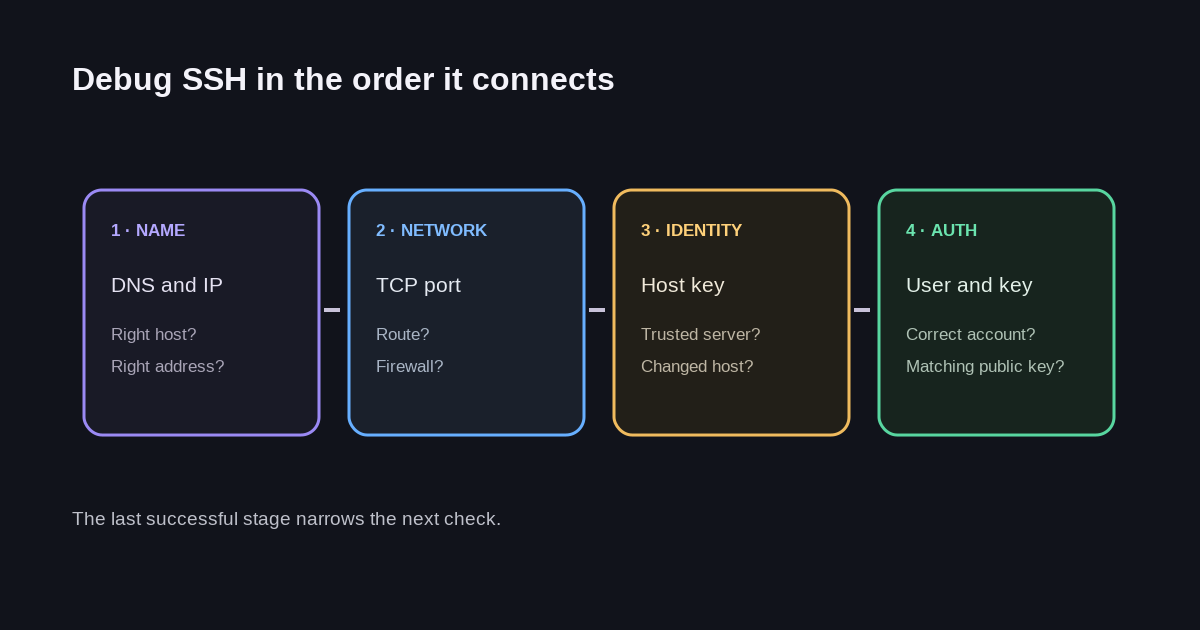
Record the exact command, client operating system, time of failure, server IP or hostname, username, and full error text. Confirm that the server is running in its cloud console and that its IP has not changed. If DNS is used, resolve the hostname and compare it with the expected address:
nslookup server.example.com
On macOS, dig server.example.com is another option. PowerShell includes Resolve-DnsName server.example.com. A hostname resolving successfully only proves DNS returned an address; it does not prove the server accepts traffic.
Run the connection with verbose diagnostics:
ssh -vvv deploy@203.0.113.10
-vvv prints negotiation detail, including which keys the client offers. It should not print the private key itself, but redact hostnames, usernames, and IPs before sharing logs if they are sensitive. Look for the last successful stage, not just the final line.
What does “Connection timed out” mean?
A timeout means the client did not complete a connection to the target port within the configured period. Check that the server is powered on and that you are connecting to its current public IP. Then check the provider firewall and server firewall for inbound TCP port 22, or the custom SSH port. If your office, VPN, or public Wi-Fi filters outbound SSH, test from an approved alternate network instead of opening server access globally.
From macOS, you can test whether the TCP port is reachable:
nc -vz 203.0.113.10 22
In PowerShell:
Test-NetConnection 203.0.113.10 -Port 22
If the TCP test fails, check routing and firewall rules before changing authentication keys. If it succeeds but SSH fails, the server accepted a TCP connection and the next issue is likely protocol negotiation, host identity, or authentication. These checks do not prove the operating system or application is healthy.
What does “Permission denied (publickey)” mean?
The server was reached but rejected the offered identity for that account. Verify the username, because a correct key installed for deploy will not necessarily authenticate as root. Specify a non-default key explicitly:
ssh -o IdentitiesOnly=yes -i ~/.ssh/id_ed25519_droplet deploy@203.0.113.10
IdentitiesOnly=yes asks OpenSSH to use the configured identity rather than trying every agent key. On Windows PowerShell:
ssh -o IdentitiesOnly=yes -i "$env:USERPROFILE\.ssh\id_ed25519_droplet" deploy@203.0.113.10
Confirm that the matching .pub file—not a different key—was installed in that user's ~/.ssh/authorized_keys. Check for a line break or accidental truncation when the key was copied. If you still have console access, check the remote account, file ownership, and permissions using the provider's current Linux documentation. Do not make the directory world-writable as a quick fix; OpenSSH may reject insecure permissions.
On macOS or Linux, inspect public-key fingerprint and file permissions:
ssh-keygen -lf ~/.ssh/id_ed25519_droplet.pub
chmod 700 ~/.ssh
chmod 600 ~/.ssh/id_ed25519_droplet
On Windows, ensure the private key is stored under your own profile and is not readable by unrelated accounts. Avoid changing ACLs with copied commands until you understand which account needs access; Windows OpenSSH can report key-loading errors when permissions are too broad.
If the private key is encrypted, ssh-agent may ask for its passphrase. On macOS, ssh-add --apple-use-keychain ~/.ssh/id_ed25519_droplet can store the passphrase in the login keychain on supported versions. On Windows, check the OpenSSH Authentication Agent service and use ssh-add only after confirming the key path. An agent is convenient, but it does not remove the need to protect the key and device.
How do you handle a host-key warning?
Messages such as REMOTE HOST IDENTIFICATION HAS CHANGED mean the server presented a different host key from the one saved previously. This can happen after rebuilding a Droplet or reinstalling its operating system, but it can also indicate that you are reaching a different machine. Verify the change through a trusted cloud console or administrator first.
After confirming the new identity, remove only the stale host entry:
ssh-keygen -R 203.0.113.10
For a hostname, use the same hostname that appears in the warning. Then reconnect and compare the new fingerprint with a trusted value before accepting it. Do not disable host-key checking or routinely use StrictHostKeyChecking=no; that hides an important server-identity check.
What if the error is “Connection refused”?
“Connection refused” usually means the destination responded but no SSH service is listening on that port, or a firewall actively rejected it. Verify the port and server address. If you have console access, check whether sshd is running and listening, and inspect service logs using the distribution's tools. A syntax error in the SSH daemon configuration can prevent a reload. Validate configuration before restarting, and keep an existing session open until a new one works.
If your provider firewall allows port 22 but the Linux firewall does not, correct the host rule; if Linux allows it but the provider blocks it, fix the cloud rule. Avoid changing both at once because it obscures which layer caused the failure. For an initial setup walkthrough, see creating a Droplet and connecting from macOS or Windows.
How do you read verbose output without getting overwhelmed?
The output is long, but a few messages tell you where to focus:
| Output clue | Likely stage | Next check |
|---|---|---|
Could not resolve hostname |
DNS or spelling | Confirm hostname and resolver |
Connecting to ... port ... then timeout |
Network path | Check address, route, cloud and host firewall |
Connection established |
TCP is reachable | Continue to host-key and authentication messages |
Offering public key |
Client selected a key | Confirm server account and authorized key |
Server accepts key |
Authentication is proceeding | Check passphrase or later account restrictions |
| Host identification changed | Server identity | Verify rebuild and fingerprint before removing entry |
Connection refused |
Service or active rejection | Check SSH daemon and actual port |
When more than one private key is being tried, the output may reveal that the client offered the wrong one first. Use -i and IdentitiesOnly=yes to test one identity cleanly. If authentication succeeds but the session closes immediately, investigate the remote shell, account policy, disk space, and server logs rather than generating another key.
What should you never do as a troubleshooting shortcut?
Do not paste a private key into a chat, commit it to a repository, or place it in a public-key field. Do not disable host-key checks to make a warning disappear. Do not open every server port to 0.0.0.0/0 because SSH times out. Do not run an unknown curl | sudo bash command from a forum without inspecting its source and understanding its effect.
Make one reversible change at a time and record the prior configuration. If the server contains production data, take a verified backup or snapshot before risky recovery work. A backup that has never been restored is not yet proof that recovery will work.
What if DNS resolves but SSH still cannot connect?
DNS answers and TCP reachability are separate checks. If the hostname returns an unexpected address, check local DNS caching, the record's TTL, and whether you are connecting to a staging alias rather than production. If it returns the right address but the port test fails, verify the route, provider firewall, and server listener. A successful ping is not required for SSH to work; ICMP may be blocked while TCP 22 is open. Likewise, a failed ping does not prove the host is down.
When using a nonstandard port, specify it explicitly with ssh -p 2222 user@host and run the port test against that same number. Do not assume that moving SSH to a different port is a substitute for key-based authentication or a well-scoped firewall. Document custom ports so future operators do not mistake a timeout for a server failure.
For a managed team, ask the provider or administrator for the exact username, port, source-IP restrictions, and expected key fingerprint. These are safe facts to exchange; the private key and access token are not. A good support report includes the timestamp, redacted ssh -vvv output around the failure, and the result of the TCP test, with secrets and customer data removed.
A concise SSH recovery sequence
- Confirm server state, current address, username, and port.
- Classify the message: DNS, timeout, refusal, host identity, or authentication.
- Use
ssh -vvvand a port test to identify the last completed stage. - Change only the corresponding client, firewall, service, or account setting.
- Test a fresh connection before closing any working session.
- Revoke a lost key and install its replacement; do not reuse exposed credentials.
For platform-specific reference, use DigitalOcean's SSH connection guide and SSH key guide, Apple's Terminal User Guide, and Microsoft's OpenSSH key management guide. If you control the Linux server, the OpenSSH sshd manual and your distribution's service documentation are the right next references.